Epic games activate: A Complete Guide to Activating Your Epic Games Account and Devices

Introduction
If you have recently downloaded Fortnite, Rocket League, Fall Guys, or another game from Epic Games, you may have seen a message asking you to complete epic games activate. This process connects your console, smart TV, or streaming device to your Epic Games account so you can play, save progress, access purchases, and use cross-platform features.
Whether you are setting up a new PlayStation, Xbox, Nintendo Switch, or smart TV, the activation process is simple once you understand the steps. This guide explains what epic games activate means, how to complete it, how to fix common problems, and how to link your accounts correctly.
In this guide, you will learn how to activate Epic Games on consoles, smart TVs, PCs, and mobile devices, along with the safest way to manage your account.
What Does Epic Games Activate Mean?
The phrase epic games activate refers to the process of linking a device to your Epic Games account using an activation code.
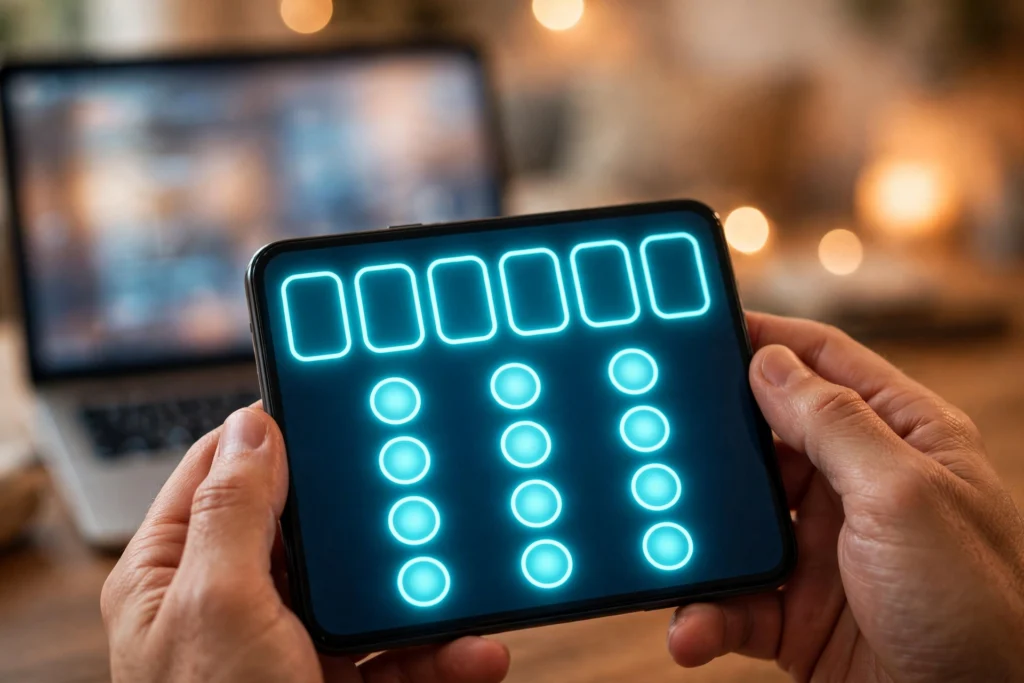
When you see this option, your device displays a short code. You then visit the Epic Games activation page in a web browser, sign in, and enter that code. Once confirmed, your device becomes connected to your account.
This process is designed to make sign-in easier on devices without a full keyboard. Instead of typing a long email address and password on a console or TV, you can use your phone or computer to complete the sign-in quickly.
It is also the standard way to connect a PlayStation Network, Xbox, or Nintendo account to Epic Games so your progress, skins, friends list, and purchases can sync across platforms.
How to Use Epic Games Activate on a Console
PlayStation, Xbox, and Nintendo Switch players often need to complete epic games activate during the first setup or after reinstalling a game.
Step 1: Open Epic Games on Your Console
Start your console and open a supported Epic Games title, such as Fortnite, Rocket League, or Fall Guys. If you are not signed in, the game will display an activation screen.
Step 2: Get Your Activation Code
The screen will show a short activation code. This code is usually made up of letters and numbers. Keep this screen open while you complete the next steps.
Step 3: Visit the Activation Page
On your phone or computer, open a web browser and go to the official Epic Games activation page. Make sure you are using the official Epic Games website to protect your account.
Step 4: Sign In to Your Epic Games Account
Sign in with your Epic Games email address and password. If you do not have an account yet, you can create one. You can also sign in using a connected PlayStation, Xbox, Nintendo, Google, Facebook, or Apple account if that option is available.
Step 5: Enter the Code and Confirm
Enter the activation code shown on your console exactly as it appears. Select the option to activate or link your device. If the code is correct, your console will be connected to your Epic Games account.
Step 6: Confirm the Link on Your Console
Return to your console and check whether the game has signed you in. If the process was successful, your account name and profile should appear. You can now play and access your saved progress.
How to Use Epic Games Activate on a Smart TV or Streaming Device
Many players also need to use epic games activate on a smart TV or streaming device when using a compatible gaming app.
Step 1: Open the App
Open the Epic Games-supported app on your smart TV or streaming device. If you are signed out, the app will show an activation code.
Step 2: Note the Code
Write down the code or keep the TV screen visible. Do not close the app until activation is complete.
Step 3: Activate in a Browser
On another device, open the Epic Games activation page, sign in, and enter the code.
Step 4: Return to Your TV
After confirmation, the TV app should refresh and sign you in automatically. If it does not, restart the app and check your account status.
How to Activate Epic Games on PC and Mobile
On PC and mobile, epic games activate is less common because you can usually sign in directly with your email and password. However, you may still need to link another platform account.
To activate or link an account on PC or mobile:
- Sign in to your Epic Games account in a browser or through the Epic Games Launcher.
- Go to your account settings.
- Open the Apps and Accounts or Connections section.
- Select the platform you want to link.
- Follow the sign-in instructions for that platform.
- Confirm the connection.
Once linked, you can use the same Epic Games account across your devices and access your games, friends, and purchases.
Why You Might Need to Activate Epic Games Again
You may need to complete epic games activate more than once. Common reasons include:
- You signed in on a new console or device.
- You installed a game again after deleting it.
- You switched to a different PlayStation, Xbox, or Nintendo account.
- You changed your Epic Games password.
- You are using a new smart TV or streaming device.
- You cleared the app data or reset your device.
Activation also helps Epic Games confirm that you own the device and the account, which improves security.
Common Epic Games Activate Problems and How to Fix Them
Although epic games activate is usually straightforward, some users experience errors. Below are the most common problems and their solutions.
Invalid or Expired Activation Code
Activation codes are temporary. If you wait too long, the code may expire. Return to the game or app and request a new code, then enter it quickly.
Make sure you enter the code exactly as shown. Check for similar characters, such as the letter O and the number 0, or the letter I and the number 1.
Code Already Used
If the code has already been used, it cannot be used again. Generate a new code on your device and complete the activation process with the fresh code.
Wrong Epic Games Account
One of the most common mistakes is signing in to the wrong Epic Games account. If you enter the code while signed in to a different account, your device will link to that account instead.
Check your account name and email before entering the code. If you linked the wrong account, you may need to unlink it from your account settings.
Activation Page Will Not Load
If the activation page does not open, check your internet connection and try a different browser. Clear your browser cache or try using a private browsing window.
Make sure you are visiting the official Epic Games website and not a third-party site.
No Code Appears on the Screen
If no code appears, restart the game or app and try again. Make sure your console or TV is connected to the internet and the app is updated to the latest version.
Account Already Linked
If you see a message saying the console account is already linked to another Epic Games account, you will need to sign in to that account or unlink the console account first.
Epic Games allows only one console account of each type to be linked to an Epic Games account at a time.
Two-Factor Authentication Issues
If you have two-factor authentication enabled, you may need to enter a verification code sent to your email or authenticator app. Check your inbox and spam folder if you do not receive the code.
How to Link Your Console Account to Epic Games
Linking your console account is an important part of epic games activate. It allows your progress and purchases to sync across platforms.
To link your console account:
- Sign in to your Epic Games account on the official website.
- Go to your profile and select Account Settings.
- Select Apps and Accounts or Connections.
- Choose the platform you want to connect, such as PlayStation Network, Xbox, or Nintendo.
- Sign in to that platform account when prompted.
- Confirm the link.
After linking, you can play on different devices using the same Epic Games account.
Is Epic Games Activate Safe?
Yes, epic games activate is safe when you use the official Epic Games website. The activation system is designed to protect your account by requiring you to confirm the connection in a browser.
However, you should be careful with unofficial websites that claim to offer free V-Bucks, skins, or account activation. These sites may try to steal your login details. Always use the official Epic Games website and never share your password or activation code with strangers.
Tips for a Smooth Epic Games Activate Experience
To avoid problems during epic games activate, follow these tips:
- Always use the official Epic Games activation page.
- Enter the code quickly before it expires.
- Keep your Epic Games account email and password secure.
- Do not share your activation code publicly.
- Use a secure internet connection.
- Sign out from shared devices when you are finished playing.
Frequently Asked Questions About Epic Games Activate
1. What is epic games activate?
epic games activate is the process of linking a console, smart TV, or streaming device to your Epic Games account using a short activation code entered on the official Epic Games website.
2. Where do I enter the Epic Games activation code?
You enter the code on the official Epic Games activation page in a web browser. Sign in to your Epic Games account, enter the code shown on your device, and confirm the connection.
3. Why does my activation code expire?
Activation codes are temporary for security reasons. If you wait too long, the code will expire and you will need to generate a new one on your device.
4. Can I activate Epic Games on more than one device?
Yes, you can activate Epic Games on multiple devices using the same account. Each device will need its own activation code during setup.
5. What should I do if my code does not work?
First, check that you entered the code correctly and that it has not expired. Request a new code, make sure you are signed in to the correct Epic Games account, and try again.
6. Do I need an Epic Games account to activate a device?
Yes, you need an Epic Games account to complete activation. If you do not have one, you can create a free account on the Epic Games website.
7. Is epic games activate free?
Yes, epic games activate is completely free. You do not need to pay to activate or link your device.
Conclusion
The epic games activate process is a simple and secure way to connect your console, smart TV, or streaming device to your Epic Games account. By following the steps in this guide, you can activate your device, link your console account, and enjoy your games with your progress and purchases synced across platforms.
If you encounter an error, check your code, confirm you are using the correct account, and request a new code if needed. With the right steps, you can complete epic games activate in just a few minutes and start playing without delay.