
You plug in your SD card and instead of your photos, you see “0 bytes” or “Unallocated space” staring back at you. It looks like your card is empty, or worse, broken. But here is the thing most people never learn: a card showing 0 bytes or unallocated is not necessarily empty. It could be the file system that indexes your data has been damaged or lost, and the data itself is very often still sitting on the card, waiting to be recovered.
With the right steps, you can fix the card and get your files back, and without formatting first.
Why Does an SD Card Show 0 Bytes or Unallocated?
An SD card can show as 0 bytes or unallocated for several reasons:
- File system corruption – the partition table or file system index is damaged.
- Improper ejection – yanking the card out during a write can break the file system.
- Power loss – the same happens when a camera or card reader loses power mid-transfer.
- Bad sectors or card fatigue – aging cards develop errors over time.
- Virus or malware – some infections damage the partition structure.
In all of these cases, the underlying data often survives. The problem is that your operating system has lost the map – not the territory. Think of the card as a library: the shelves (your photos and videos) are still stocked, but the catalog (the file system) has been destroyed. A recovery tool reads the shelves directly, file by file, without needing the catalog at all.
Step 1 – Do Not Initialize or Format the Card
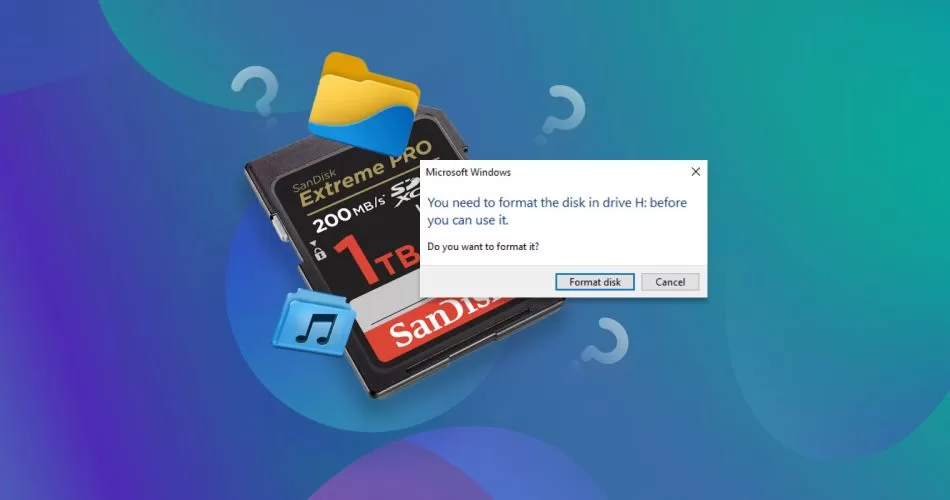
When Windows sees an unallocated disk, it offers to initialize it. When a card appears empty, tools suggest formatting it. **Do not accept either prompt.** Initializing creates a new partition structure, and formatting rebuilds the file system – both can overwrite the data you are trying to save.
If the card appeared with a “Do you want to format it?” dialog, close it, remove the card, and use data recovery software instead.
The same caution applies to online advice that tells you to “fix” an unallocated drive by creating a new partition first. That advice assumes the drive is empty. Your card is not empty – it is unreadable. The difference is the entire point of recovery software: it treats the card as full of data that needs to be found, not as a blank disk waiting to be initialized.
Step 2 – Recover Data with Recoverit First
Wondershare Recoverit is designed for exactly this situation: cards whose file systems have collapsed. It scans the raw card in read-only mode – never writing a single byte – and rebuilds device-specific data patterns to find files that the operating system can no longer see.
1. Launch Recoverit and click SD Card Recovery.
2. Connect your card through a card reader. AI-boosted device recognition detects it even when Windows reports 0 bytes.
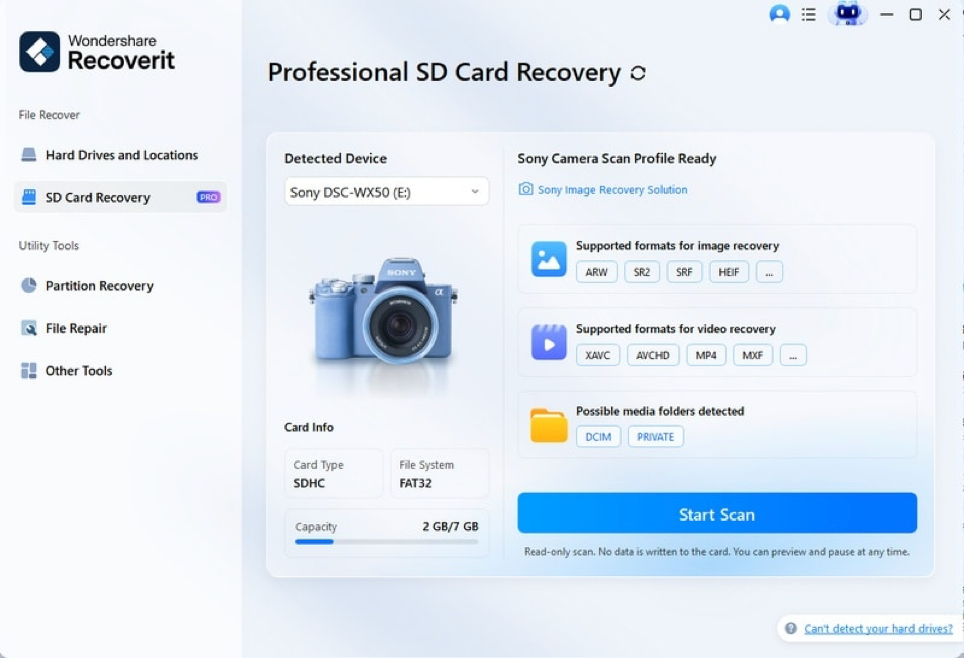
3. Select the card and click Scan. The AI-accelerated scan works at the sector level, so it can locate files despite the broken file system.
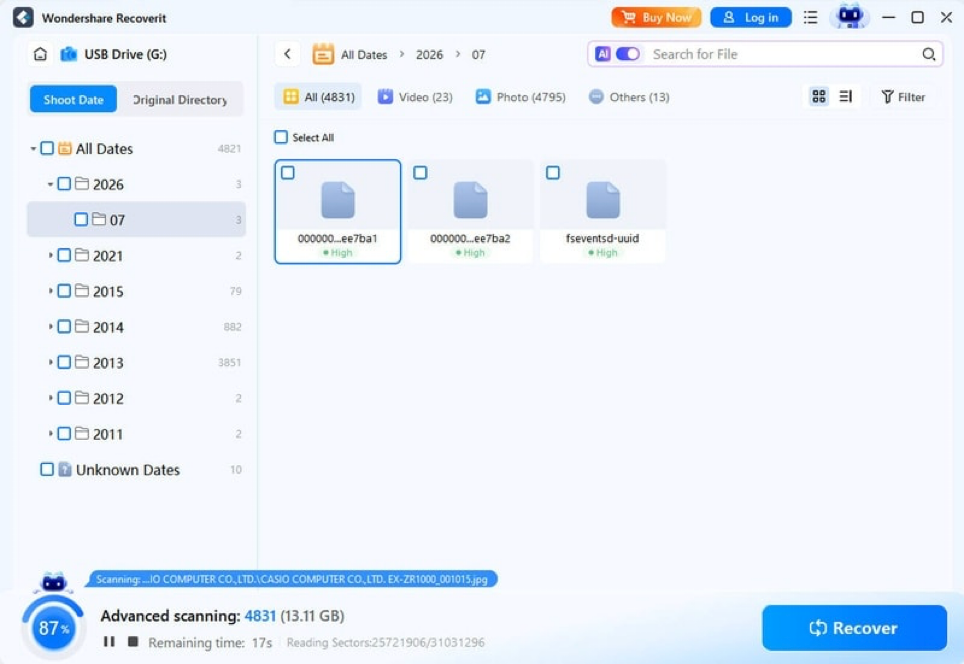
4. Preview the recovered files – it handles photos and 4K videos alike, as well as documents and audio. Select what you need and click Recover, then save to a healthy drive.
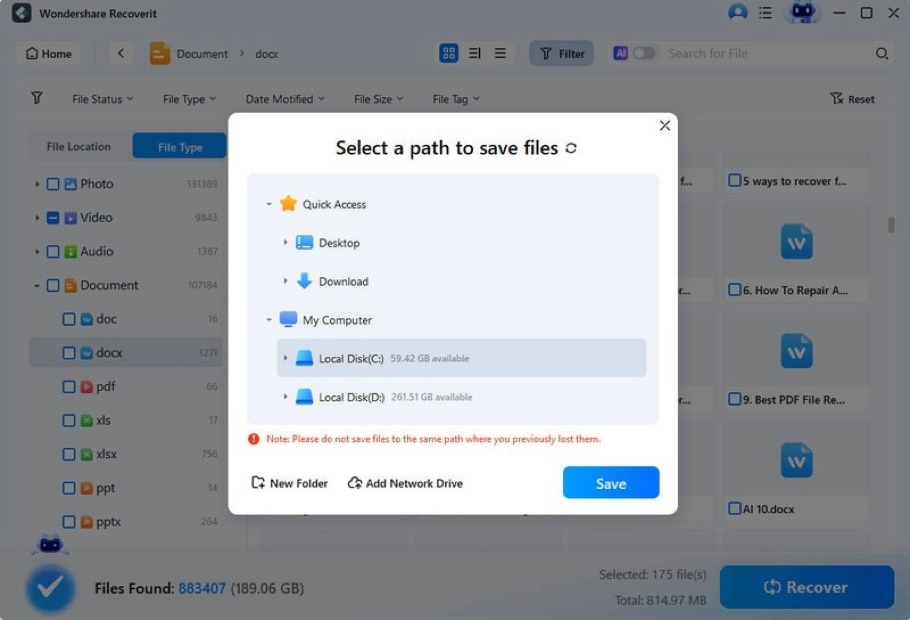
If your card holds mostly images, the SD card photo recovery tool covers common and RAW formats with AI-powered preview so you know exactly what you are restoring.
A Note on Card Readers and USB Ports
An “unallocated” card can also be a signal that your reader or port is at fault. Before assuming the worst, try the card in a different reader, or connect it through a different USB port – especially one that carries more power. Cheap or worn readers drop connections mid-read, which makes a healthy card look unallocated or empty. If the card mounts normally elsewhere, your data was never in danger.
Step 3 – Rebuild or Replace the Card After Recovery
Once your data is safe, you can give the card a second life:
- On Windows: open Disk Management, find the card, and create a new partition, then format it.
- On MacOS: open Disk Utility, select the card, and erase it with a compatible format (exFAT is a safe choice for cameras).
If the card shows 0 bytes again after rebuilding, it is a sign of hardware failure. Replace it – a card that keeps losing its file system will eventually lose your data for good. It is worth tracking how often a card fails: a single incident may be bad luck, but a repeat pattern is a clear signal that the card’s controller or flash cells are degrading.
Why Read-Only Scanning Matters
The single most important habit in recovery is refusing to write to the card. Every byte written – by a format, an initialization, or even a failed copy – can overwrite the exact data you want back. Read-only scanning, which tools like Recoverit use by default, means the card is examined, never modified. This is why recovery software, not disk tools, should always come first.
It is also why the order of operations matters. Even a well-intentioned tool – a partition fixer, a “repair” utility – can write changes that reduce recovery success. If a card is behaving oddly, the sequence should always be: recover first, repair later.
Conclusion
A 0-byte or unallocated SD card looks like a dead end, but it is usually just a card with a broken map. Skip the format prompt, scan the card read-only, and recover your data before rebuilding it. With Wondershare Recoverit, the whole process takes three steps – detect, scan, recover – and your files get a second chance even when the file system does not. The card’s reported size says nothing about what is actually on it; the only way to know is to look past the broken index and read the data itself. That is what a sector-level scan does, and it is why “0 bytes” is rarely the final word.